
Overview
A campus support team wants error alerts in Slack. Use a disposable metric to demonstrate an alarm notification and subsequent recovery.
Amazon Q Developer in chat applications is the current name of the service formerly called AWS Chatbot. You will configure notification permissions only. The lab does not create a real application incident or enable automated remediation.
Architecture
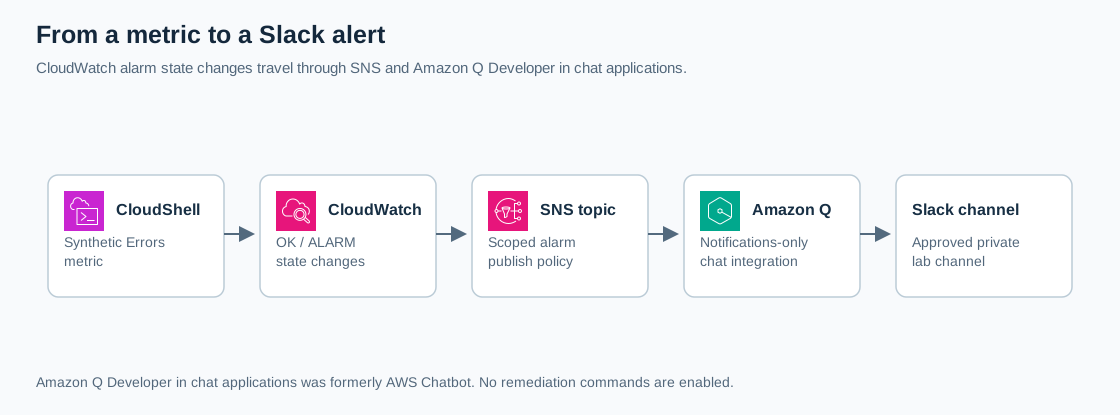
Open the full-size architecture diagram
CloudWatch evaluates the metric. SNS carries its alarm notification. Amazon Q Developer in chat applications formats that supported notification for Slack. IAM controls the integration's AWS permissions; Slack workspace approval controls installation in the workspace.
Production alerts need an owner, escalation rules, and a runbook. Plain text published directly to SNS cannot replace this test: the integration supports specific notification formats. AWS supported integrations
Prerequisites
- An isolated AWS account and an authorized role with CloudShell access, SNS topic/subscription management, CloudWatch metric/alarm management, and permission to create/pass the dedicated integration role and manage its policies.
- Permission to configure Amazon Q Developer in chat applications, including its service-linked role if this is the account's first configuration. Its IAM/API identifiers can still use
chatbot. - A Slack workspace administrator's approval and a dedicated private test channel whose members expect these synthetic notifications. You perform the authorization and messages yourself.
- Use
us-east-1; choose one unique suffix for all lab resources. No real customer data or incident details are needed.
Steps
1. Create a dedicated SNS destination
In SNS, create a Standard topic named cloudadhar-slack-alerts-YOUR-SUFFIX. Retain owner-restricted access and leave optional KMS encryption disabled for this synthetic exercise unless your organization requires it. Copy its ARN.
Choose alarm name cloudadhar-slack-errors-YOUR-SUFFIX. Edit the topic access policy and append this statement to its existing Statement array. Replace all placeholders, retaining the original owner statement:
{
  "Sid": "AllowOnlyThisLabAlarm",
  "Effect": "Allow",
  "Principal": {"Service": "cloudwatch.amazonaws.com"},
  "Action": "sns:Publish",
  "Resource": "YOUR_TOPIC_ARN",
  "Condition": {
    "StringEquals": {"aws:SourceAccount": "YOUR_ACCOUNT_ID"},
    "ArnEquals": {
      "aws:SourceArn": "arn:aws:cloudwatch:us-east-1:YOUR_ACCOUNT_ID:alarm:YOUR_ALARM_NAME"
    }
  }
}
This permits the selected alarm to publish without granting every AWS account access. AWS alarm notification permissions
2. Connect the approved Slack channel
Open the Amazon Q Developer in chat applications console. Configure a Slack client, select the approved workspace, and complete Slack authorization. Request administrator approval if installation is restricted. Invite the Amazon Q app into your private lab channel with /invite @Amazon Q.
Choose Configure new channel. Name it cloudadhar-alerts-YOUR-SUFFIX, select the channel or enter its channel ID, and select your SNS topic in us-east-1. Leave optional CloudWatch logging disabled for this exercise.
For permissions, choose Channel role, create a dedicated role named cloudadhar-q-notify-YOUR-SUFFIX, and select only the Notification permissions template. Do not select command, Lambda invocation, or Amazon Q conversation templates. AWS Slack setup
In IAM, inspect the role. Retain the notification policy, which allows CloudWatch Describe/Get/List actions. Remove any automatically attached broad ReadOnlyAccess policy from this dedicated role. Select the notifications-only customer managed policy as the channel guardrail as well. Avoid changing shared roles or policies. AWS notification policy
Save. Verify the exact topic and private channel are associated. The channel guardrail limits user-role permissions as well as channel-role permissions. AWS permission model
3. Define the alarm
Open CloudShell and verify aws sts get-caller-identity. Set these Bash variables to the values recorded above:
LAB_TOPIC_ARN='YOUR_TOPIC_ARN'
LAB_ALARM='YOUR_ALARM_NAME'
LAB_ID='YOUR-SUFFIX'

aws cloudwatch put-metric-alarm \
  --region us-east-1 --alarm-name "$LAB_ALARM" \
  --namespace CloudAdhar/Lab --metric-name ErrorCount \
  --dimensions Name=LabId,Value="$LAB_ID" \
  --statistic Maximum --unit Count --period 60 \
  --evaluation-periods 1 --datapoints-to-alarm 1 \
  --threshold 1 --comparison-operator GreaterThanOrEqualToThreshold \
  --treat-missing-data missing \
  --alarm-actions "$LAB_TOPIC_ARN" --ok-actions "$LAB_TOPIC_ARN"
The alarm watches one exact dimension and sends both ALARM and OK transitions. It may initially show INSUFFICIENT_DATA. Successful creation normally prints no output. AWS alarm CLI
4. Establish a healthy baseline
Define this helper in the same shell. It publishes three samples over three minutes and then stops:
publish_value() {
  for sample in 1 2 3; do
    aws cloudwatch put-metric-data \
      --region us-east-1 --namespace CloudAdhar/Lab \
      --metric-name ErrorCount --dimensions LabId="$LAB_ID" \
      --unit Count --value "$1"
    sleep 60
  done
}
publish_value 0

aws cloudwatch describe-alarms \
  --region us-east-1 --alarm-names "$LAB_ALARM" \
  --query 'MetricAlarms[0].[StateValue,StateReason]' --output table
Wait for OK before continuing. Inspect the metric and dimension if it remains INSUFFICIENT_DATA. You may receive an initial OK notification. AWS metric publishing
5. Trigger and recover
Run publish_value 2. Check the alarm in CloudWatch and inspect its History tab. Wait for ALARM and a Slack notification with the same alarm name, region, and state-change time. Evaluation and message delivery can take several minutes.
Then run publish_value 0. Wait for a later OK transition and recovery notification. With Maximum aggregation, a zero in the same minute as a two does not cancel that minute's breach; later healthy periods establish recovery.
This proves metric evaluation and delivery together. The console's Send test message feature checks integration plumbing only; it cannot replace the observed alarm transitions.
6. Troubleshoot one layer at a time
If CloudWatch changes state but Slack stays silent, inspect alarm History for action failures, verify actions are enabled, and compare the configured SNS ARN and topic policy. Check that Amazon Q is in the channel and subscribed to the selected topic. A custom KMS key requires additional permissions beyond this example.
If the alarm never changes, compare namespace, metric name, dimension, region, and threshold. Record the failed layer and supporting evidence.
Verification
| Phase | CloudWatch evidence | Slack evidence |
|---|---|---|
| Baseline | Value 0 and OK | Initial OK may appear |
| Failure | Value 2 and ALARM | Matching alarm notification |
| Recovery | Later value 0 and OK | Matching recovery notification |
Save redacted timestamps and screenshots. Explain the difference between metric ingestion, alarm evaluation, SNS publication, and chat delivery.
Cost and cleanup
Custom metrics, alarms, SNS requests, and optional logs can incur charges. Keep one metric and one alarm; the finite helper avoids continuous publishing. Review CloudWatch pricing and SNS pricing.
Stop publishing and delete the alarm:
aws cloudwatch delete-alarms --region us-east-1 --alarm-names "$LAB_ALARM"Delete the dedicated channel configuration, then the SNS topic and any remaining lab subscription. Delete the dedicated IAM role and any customer managed policy created solely for it. Retain shared service-linked roles, workspace installations, and policies used elsewhere. Archive your lab channel if appropriate; remove workspace authorization only if it was created solely for this exercise and no other configuration uses it.
Custom metrics cannot be manually deleted; stop sending data and let retained samples age out. This is expected, not a failed cleanup. AWS metric retention